Schema Management
Schemas are the foundational blueprints for your data. They define the structure, data types, and validation rules for your configurations. In this application, Schemas are Workspace-level resources, meaning they are shared and reusable across all namespaces.
Navigating to Schemas
Click the Schemas link in the left "Workspace" zone of the navigation bar. This opens the Schema List, which displays all available schemas and their current versions.
Creating a New Schema
- On the Schema List page, click the Create New Schema button.
- Name: Enter a unique name for your schema.
-
Define Structure: You can define your schema in two ways:
- Manual Builder: Use the visual Schema Editor to add fields, define types (String, Int, Boolean, etc.), and set default values.
- AI Suggestion: Click the Suggest Schema button (Sparkles icon). Describe the data you want to model (e.g., "I need a schema for storing database connection settings including host, port, and credentials"), and the AI will generate a starting point for you.
-
Click Save to create the initial version (Version 1).
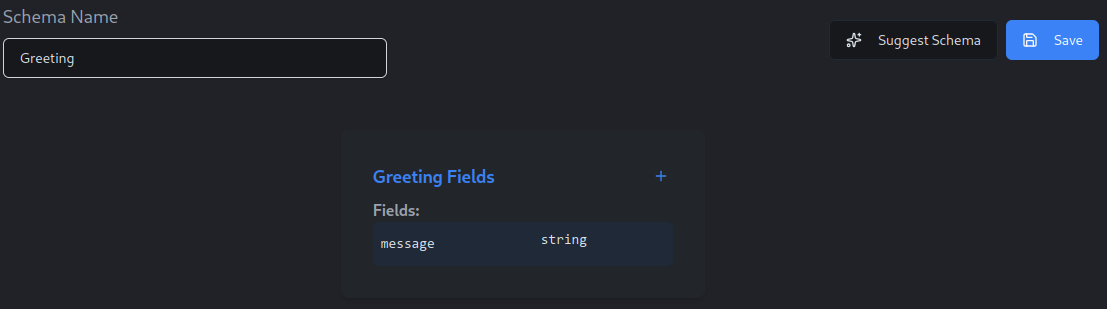
The AI schema suggestion feature makes use of any data dictionaries that you have created at the workspace level and the namespace level to help improve the accuracy of the suggestions.
Schema Versioning
Schemas are immutable and versioned. You never "overwrite" a schema; you create a new version of it.
- To update a schema, simply open it, make your changes, and click Save.
- The system will automatically increment the version number (e.g., from v1 to v2).
- Existing configurations that use older versions of the schema remain unaffected, ensuring stability across your environments until you explicitly choose to upgrade them.
Viewing Builds & Artifacts
For every schema version you save, the system automatically generates code bindings for various languages (e.g., Java, TypeScript, Go).
- From the Schema List, find the schema you are interested in.
- Click the View Builds button (History icon) next to the specific version.
- This page displays the build status for each supported language. You can download the generated SDKs or view dependency information (like Maven coordinates) to include the schema directly in your application codebase.
