Fig Management
Figs (short for Configurations) are the actual data instances that drive your application's behavior. Unlike Schemas, which are global to the workspace, Figs are strictly scoped to a specific Namespace. This allows you to manage different configurations for different teams or projects independently.
Accessing Figs
- Ensure you have selected the correct Namespace in the top navigation bar.
- Click the Figs link in the "Namespace Zone" on the right side of the navigation bar.
Fig Definitions
A Fig Definition establishes the identity of a configuration. It links a unique Key (e.g., payment-service-config) to a specific Schema.
Creating a Fig Definition
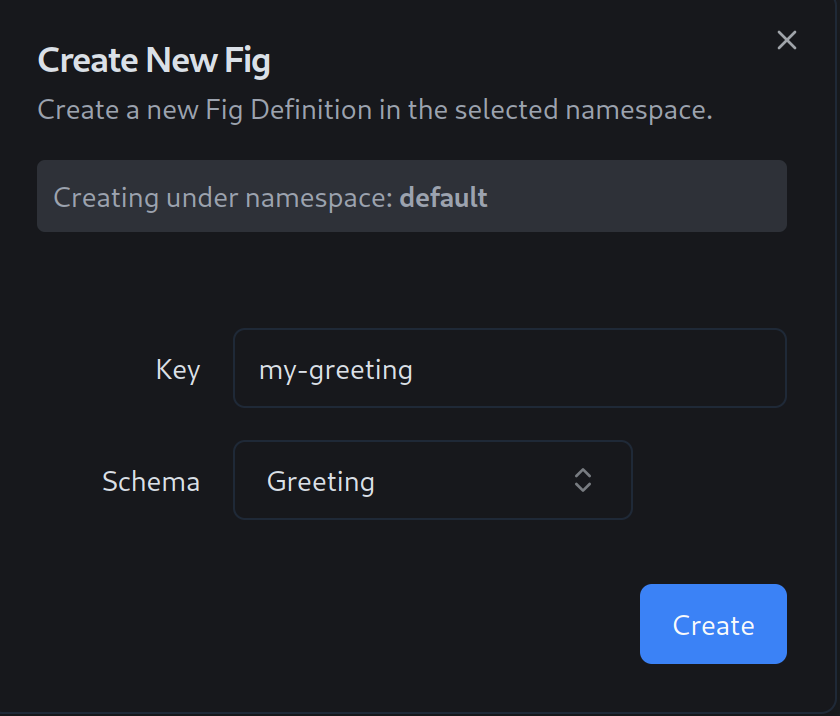
- Click the Create Fig button.
- Key: Enter a unique identifier. This key is what your application will use to request the configuration.
- Schema: Select the underlying Schema that this Fig must adhere to. The schema dictates what fields are available and enforces validation rules.
- Click Create.
Managing Versions
Configurations in this system are immutable. You do not update a configuration in place; instead, you create a new Version. This ensures that you have a perfect audit trail and can instantly roll back to any previous state.
Creating a New Version
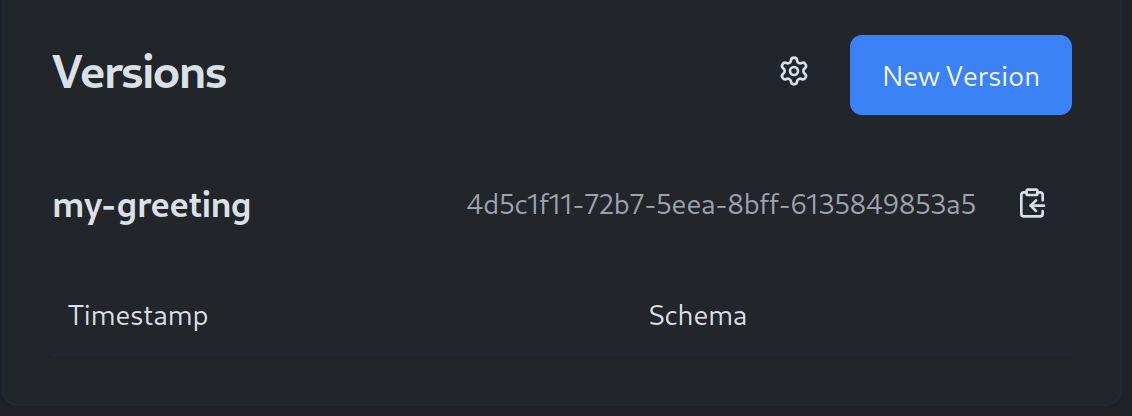
- Select a Fig from the list on the left to view its details.
-
Click the New Version button.
- Tip: By default, the new version will be pre-filled with the data from the most recent version, making it easy to apply incremental updates.
-
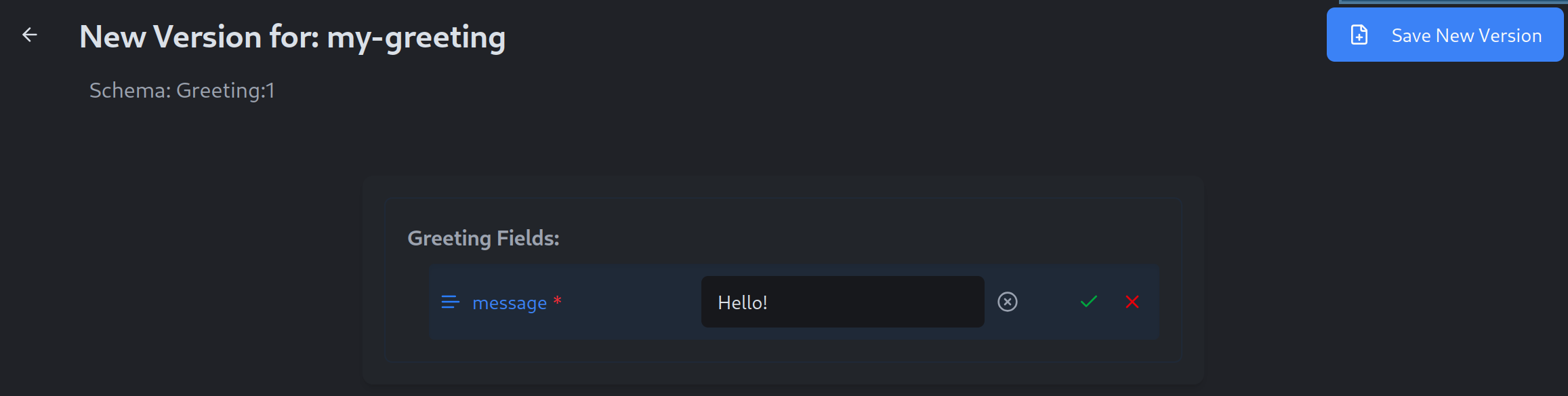
Visual Editor: You will be taken to the Fig Editor. This interface is automatically generated based on the associated Schema.
- Form fields allow you to input values for Strings, Numbers, and Booleans.
- Complex types like Arrays and Nested Objects are handled with intuitive controls.
- The editor enforces validation rules (e.g., required fields) in real-time.
-
Click Save New Version. The new version is immediately created with a unique, time-sorted ID.
Environment Rollouts
Once you have created multiple versions of a Fig, you need to control which version is "live" for your applications. This is handled via the Rollout Settings.
- Select a Fig Definition to see its version history.
- Click the Rollout Settings button (often displayed with the environment name) in the header.
- Status: You can view which version is currently active in your environments.
- Update: Select a specific version ID to promote it to that environment.
- Save: The change is propagated immediately. Applications listening to that environment will receive the update instantly.