Overview
Getting Started
Welcome to the FigChain web application. This guide will help you access your workspace, set up your profile, and navigate the user interface.
Accessing the Application
To access your workspace, navigate to https://app.figchain.io. You will be presented with the login screen.
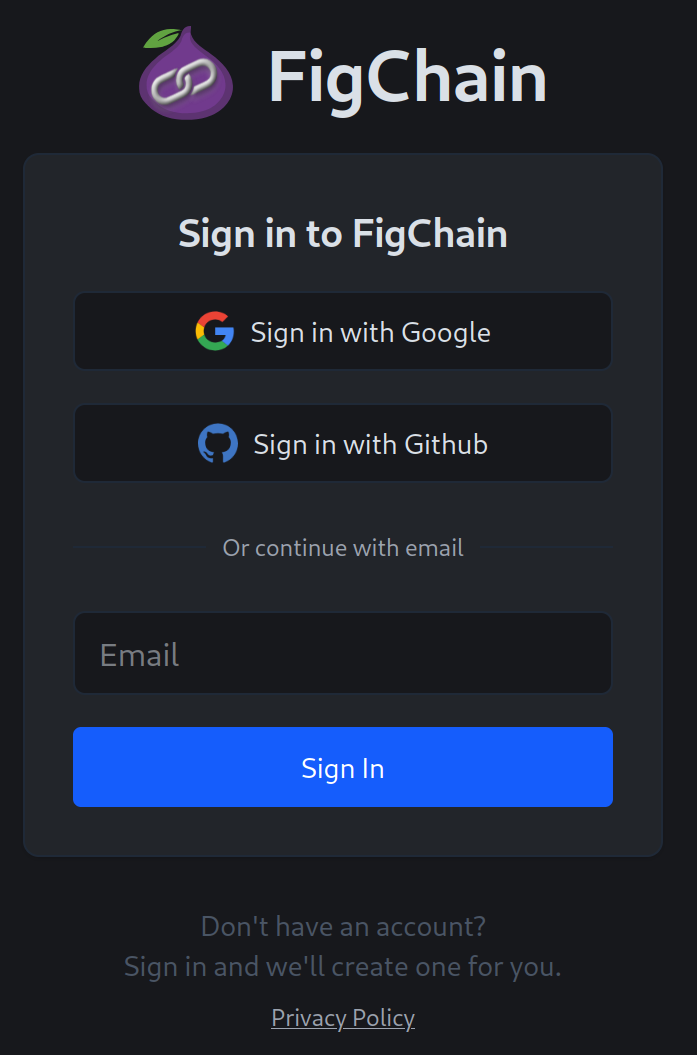
You can sign in using one of the following methods:
- Email: Sign in with your email address to receive a sign-in link.
- Google: Use your Google account for single sign-on (SSO).
- GitHub: Use your GitHub account for single sign-on (SSO).
Setting Up Your Profile
If this is your first time accessing the application and you chose to sign in with email, you will be prompted to complete your profile before proceeding.
![Create Profile Screen Placeholder]
- Enter your First Name.
- Enter your Last Name.
- Click Continue.
Once your profile is successfully created, you will be redirected to the main application.
Navigating the Interface
Upon logging in, you will see the main navigation bar at the top of the screen. This bar is your primary tool for moving around the application.
![Navbar Screenshot Placeholder]
The navigation is divided into two distinct zones:
- Workspace Zone (Left): This section contains resources that apply to your entire workspace (tenant).
- Schemas: Takes you to the Schema Management page.
-
Namespace Zone (Right): This section is specific to the namespace you are currently working in.
- Namespace Selector: Use this dropdown to switch between different Namespaces.
- Figs: Takes you to the Fig (Configuration) Management page for the selected namespace.
-
Docs: A direct link to the external documentation.
- User Menu: Located on the far right, clicking your avatar opens a menu to:
- Access Settings.
- Log out of the application.
The Dashboard
While the path /dashboard exists, the application currently redirects you to the Schemas page by default, as this is the primary workspace for defining your data structures.